A laptop that doesn't power on, can't boot an OS, has a bad monitor, or is plagued with a multitude of issues can be referred to as a "dead laptop." When faced with such a problem, data loss is a major concern, but there are ways to retrieve your files and transfer them to a new laptop.
Recover laptop hard drive
However, the meaning of a "dead laptop" may differ from person to person. If you define it as a laptop with inaccessible primary storage or a system that can't boot the OS in the primary drive, these problems are relatable and can be fixed with ease. Here are some quick fixes to get your laptop back up and running.
Recover hard drive from dead laptop
- Check the Connections
Checking the connections between your laptop's hard drive and motherboard is crucial in troubleshooting a dead hard drive. Sometimes, the connections can loosen or become damaged over time, causing the hard drive to stop working properly. To check the connections, you need to open your laptop's case and locate the hard drive.
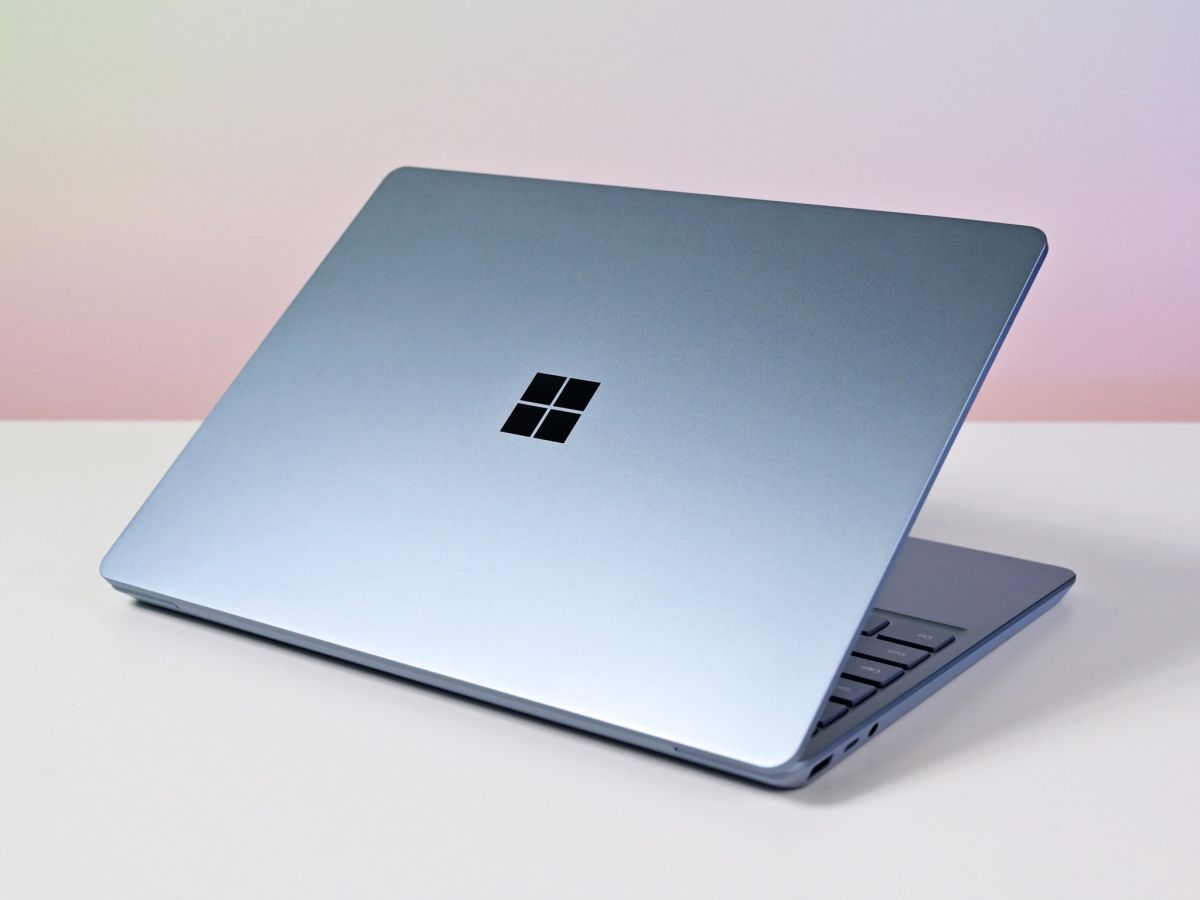
Check the cables connecting it to the motherboard and make sure they are securely in place and not damaged. If necessary, try reconnecting or replacing them.
- Check the Power Supply
Another important step is checking the power supply to ensure the laptop receives enough power to work properly. Check the battery, power cord, power outlet, and power adapter for any signs of damage. If the laptop still doesn't receive enough power, there might be a problem with the motherboard or other internal components.
- Run Diagnostic Tools
Running diagnostic tools is an effective way to identify issues with the hard drive. Many laptops come with built-in diagnostic tools that can be used to run tests on your hard drive. To access these tools, restart your laptop and enter the BIOS setup. Look for an option labeled "Diagnostics" or "System Test" and follow the prompts to run the test.
- Try Booting from a Different Device
Booting from a different device is an excellent way to troubleshoot a dead laptop hard drive. If the laptop can boot from a different device like a USB drive, this may indicate that the issue is with the hard drive itself. To do this, create a bootable device with a compatible operating system, insert it into your laptop's USB port or CD/DVD drive, and restart your laptop. Press the key that corresponds to your laptop's BIOS setup during the startup process and navigate to the option labeled "Boot Order." Select the device you inserted and save the changes.
DiskInternals Uneraser
DiskInternals Uneraser is a powerful hard disk recovery tool that offers an easy and effective way to recover lost or deleted files from your computer. One of the key advantages of this tool is its free preview option, which does not require a license. This means you can test the software and view recoverable files before making a purchase.
DiskInternals Uneraser uses advanced algorithms to scan your hard drive and locate deleted files that other recovery tools may miss. It supports a wide range of file formats, including photos, videos, documents, music, and more. With its user-friendly interface, you can quickly and easily select the files you want to recover and restore them to your computer.
In addition to its powerful recovery capabilities, DiskInternals Uneraser also offers several other advantages. For one, it supports both internal and external hard drives, as well as memory cards, USB drives, and other storage devices. It also allows you to preview recoverable files before restoring them, so you can ensure you're recovering the right files.
Overall, DiskInternals Uneraser is a must-have tool for anyone who has ever accidentally deleted important files or lost data due to a hard drive crash. With its free preview option and advanced recovery capabilities, this tool is a smart investment that will save you time, money, and frustration in the long run.
In conclusion, reviving a dead laptop may seem daunting, but with these quick fixes, you can retrieve your data and get your laptop up and running again. If you are not comfortable working with hardware or unsure about any step in the process, it's best to seek professional help.
