3 Effective Ways to Use ChatGPT in Excel
3 Effective Strategies for Optimizing Excel with ChatGPT
Excel is a powerful tool for managing and analyzing large datasets, but navigating complex formulas and tasks can be challenging. Luckily, ChatGPT offers a solution by providing real-time assistance and enhancing your Excel experience. In this article, we will explore three effective ways to utilize ChatGPT in Excel and unlock its full potential for data analysis.
Harness ChatGPT for Formula Creation and Implementation
Crafting and finding the right formulas in Excel can be time-consuming and intimidating. Additionally, a single error in a formula can lead to incorrect results, further complicating matters. However, ChatGPT can alleviate these challenges by generating and implementing formulas tailored to your specific requirements.
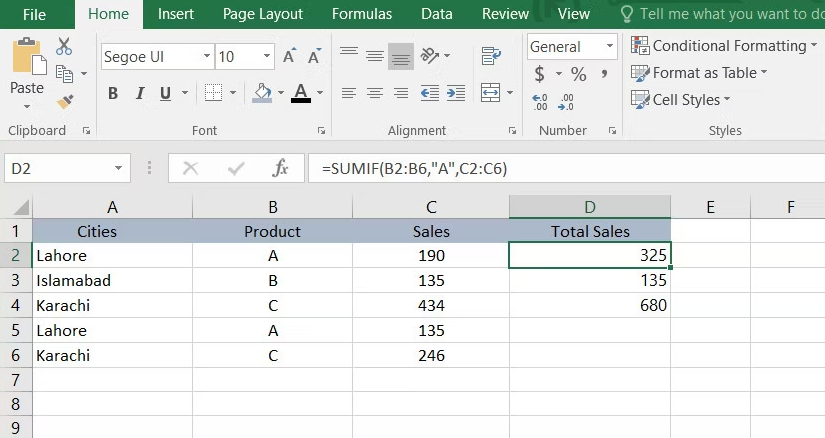
To leverage this capability, start by outlining your formula's basic requirements, including a sample of your spreadsheet and a description of the desired task. Then, ask ChatGPT to create the formula for you. This can involve using a formula/function builder or manually inputting the formula into your spreadsheet.
For example, if you want to calculate the total sales for each product in a spreadsheet containing data on product sales in different cities, provide ChatGPT with the necessary details and ask it to calculate the sales of a specific product. By following the steps provided by ChatGPT, you can accurately calculate the total sales.
When utilizing ChatGPT for formula creation, consider the following tips:
- Provide clear and specific instructions to ensure accurate responses.
- If feasible, share the contents of your spreadsheet for better context.
- Double-check the formatting and syntax of the generated formulas to avoid errors.
- Test the formulas on a small data sample to verify their accuracy.
- By following these guidelines, you can effectively utilize ChatGPT to overcome formula-related challenges and boost your productivity.
Leverage ChatGPT for Macro Creation
Macros enable you to automate repetitive tasks in Excel by recording a set of instructions and executing them with a single click. However, creating macros can be daunting, especially for individuals unfamiliar with programming or VBA (Visual Basic for Applications). Fortunately, ChatGPT can assist you throughout the macro creation process.
Let's consider an example: You have a sales data spreadsheet with columns for employee name, region, quarter, and total sales. You want to create a macro that filters the data to display the total sales made in the first quarter for the North region. By describing this requirement to ChatGPT, it can guide you in creating a macro to achieve the desired result.
To implement the macro, follow these steps:
- Press the Alt + F11 keys to open the Visual Basic Editor.
- Navigate to Insert > Module.
- Enter the code provided by ChatGPT.
- Save the macro-enabled workbook by selecting "Excel Macro-Enabled Workbook" from the Save as type dropdown.
- Return to your worksheet, go to the Developer tab, select Macros, and run the created macro.
- With ChatGPT's assistance, you can simplify the creation and execution of macros in Excel, boosting your efficiency and productivity.
Automate Email Sending with ChatGPT
When managing a large team, automating tasks such as email sending can save valuable time. Excel offers various methods for automating emails, particularly when sending similar information to a group of people regularly. By incorporating ChatGPT, you can further streamline this process and enhance efficiency.
One approach is to request ChatGPT to create a relevant VBA macro, similar to the previous examples. Suppose you need to send the first-quarter revenue report to the senior management of your firm. By instructing ChatGPT accordingly, it can generate a VBA macro that automates the email-sending process.
Once you have the macro, save the module and follow the previously mentioned steps to execute it. By utilizing ChatGPT's assistance, you can effortlessly automate email communication in Excel.
Additional Tips and Possibilities
Apart from the three strategies mentioned above, ChatGPT can assist you in other Excel-related tasks, such as data analysis and visualization using tools like Charts and the Data Analysis Toolpak. You can also troubleshoot Excel issues by providing ChatGPT with specific error details.
While ChatGPT has its limitations, it serves as a valuable resource for optimizing your Excel experience. Whether you need help with formulas, error resolution, or learning new Excel features, ChatGPT can boost your productivity and alleviate any concerns you may have when working with spreadsheets.
Unlock the full potential of Excel with ChatGPT and take your data analysis skills to the next level.
