How to reinstall an uninstalled program
If you're a Mac user and you've recently uninstalled a program from your computer, but now find that you need to reinstall it, you may be wondering what steps you need to take. Fortunately, the process of reinstalling an uninstalled program on a Mac is fairly straightforward, and in this article, we'll walk you through the steps.
How to reinstall deleted programs
Step 1: Check your backups
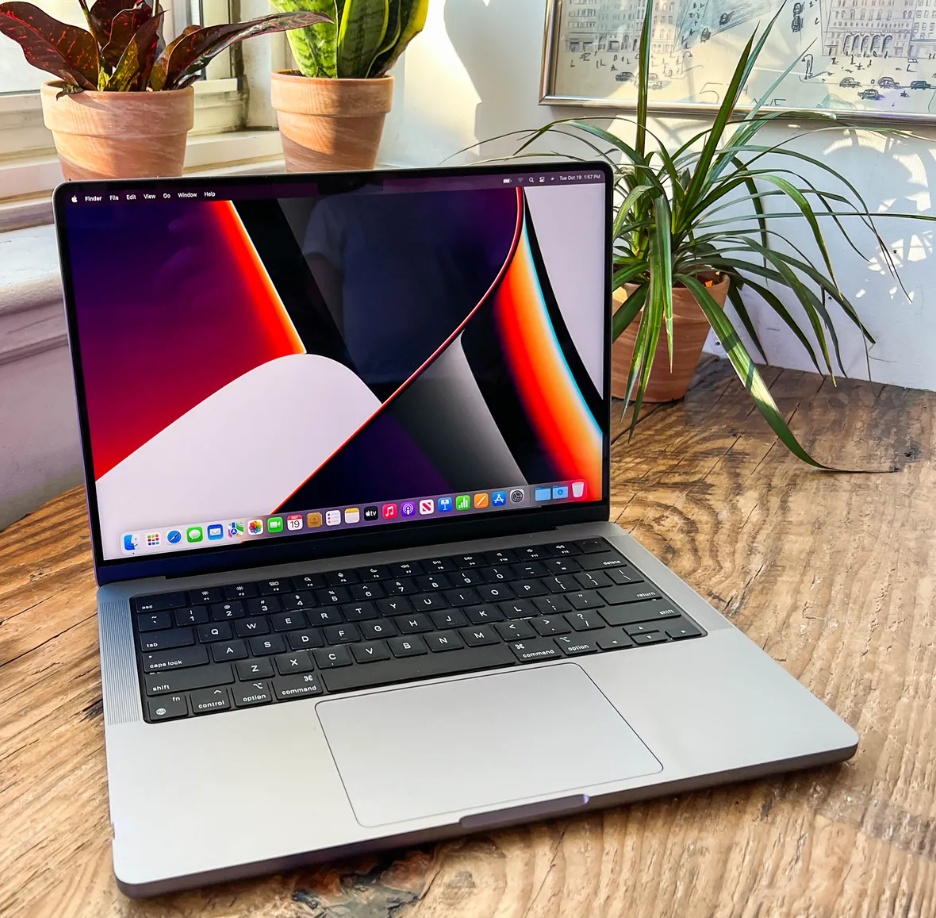
Before you begin the process of reinstalling a program, it's always a good idea to check if you have a backup of the application. If you do, you can simply restore the program from your backup rather than going through the entire installation process again.
Step 2: Download the installation file If you don't have a backup of the program, you'll need to download the installation file. You can usually find this on the software developer's website or on the Mac App Store.
Once you've downloaded the installation file, move it to a location on your computer where you can easily find it, such as your desktop.
How to restore a program that was uninstalled
Step 3: Install the program To install the program, simply double-click on the installation file. This will open the installation wizard, which will guide you through the installation process.
Follow the prompts to install the program, and be sure to read each prompt carefully and make any necessary selections.
Step 4: Run the program Once the installation is complete, you can launch the program from your Applications folder. If the program was previously registered or licensed, you may need to re-enter your license key or reactivate the software.
Reinstalling an uninstalled program on a Mac is a relatively simple process. By following the steps outlined in this article, you can easily reinstall a program and get back to using the software in no time. If you continue to experience issues with the program, you may want to consider contacting the software's support team for additional assistance.
